03. Add Airflow Connections to AWS
Add Airflow Connections
Here, we'll use Airflow's UI to configure your AWS credentials and connection to Redshift.
- To go to the Airflow UI:
- You can use the Project Workspace here and click on the blue Access Airflow button in the bottom right.
- If you'd prefer to run Airflow locally, open http://localhost:8080 in Google Chrome (other browsers occasionally have issues rendering the Airflow UI).
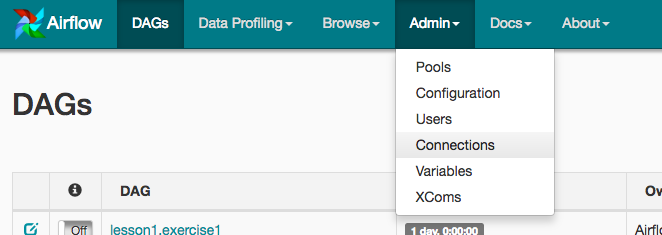
- Click on the Admin tab and select Connections.
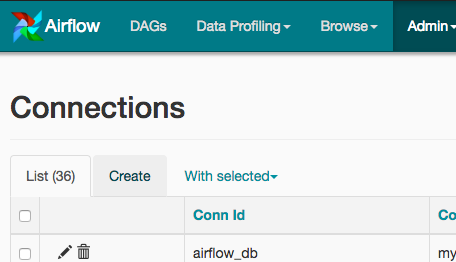
- Under Connections, select Create.
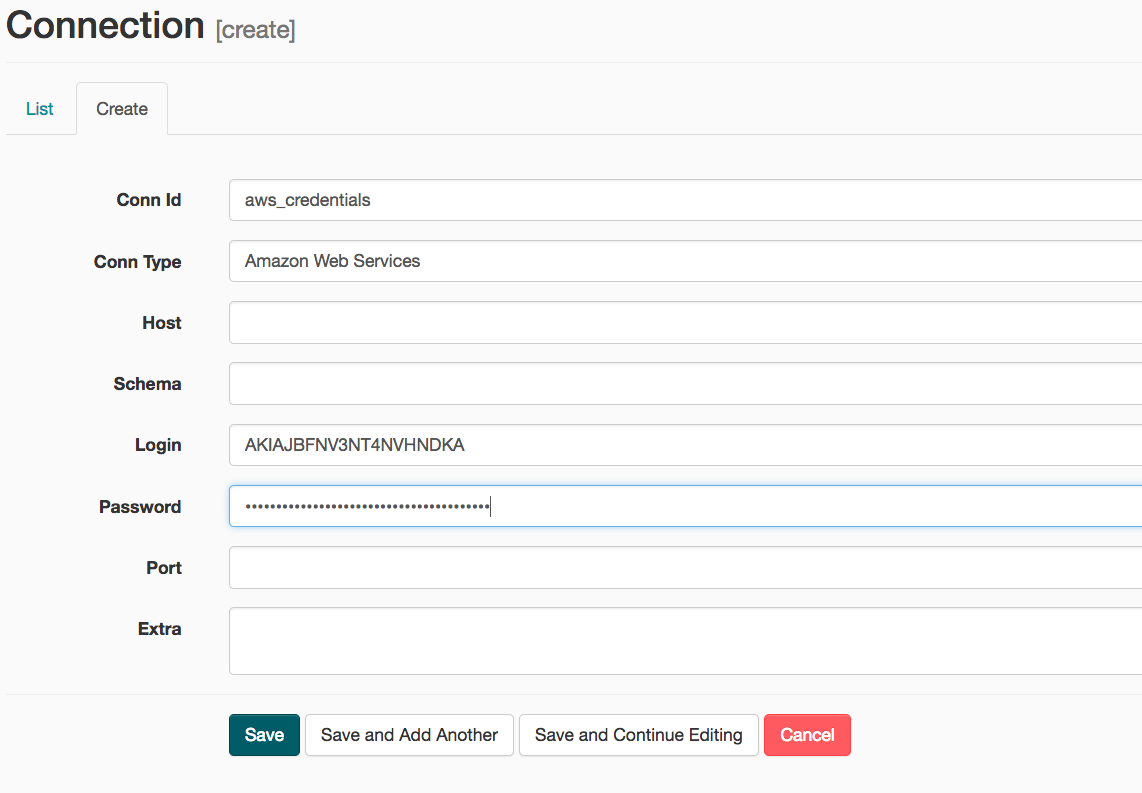
On the create connection page, enter the following values:
- Conn Id: Enter
aws_credentials. - Conn Type: Enter
Amazon Web Services. - Login: Enter your Access key ID from the IAM User credentials you downloaded earlier.
- Password: Enter your Secret access key from the IAM User credentials you downloaded earlier.
Once you've entered these values, select Save and Add Another.
- Conn Id: Enter
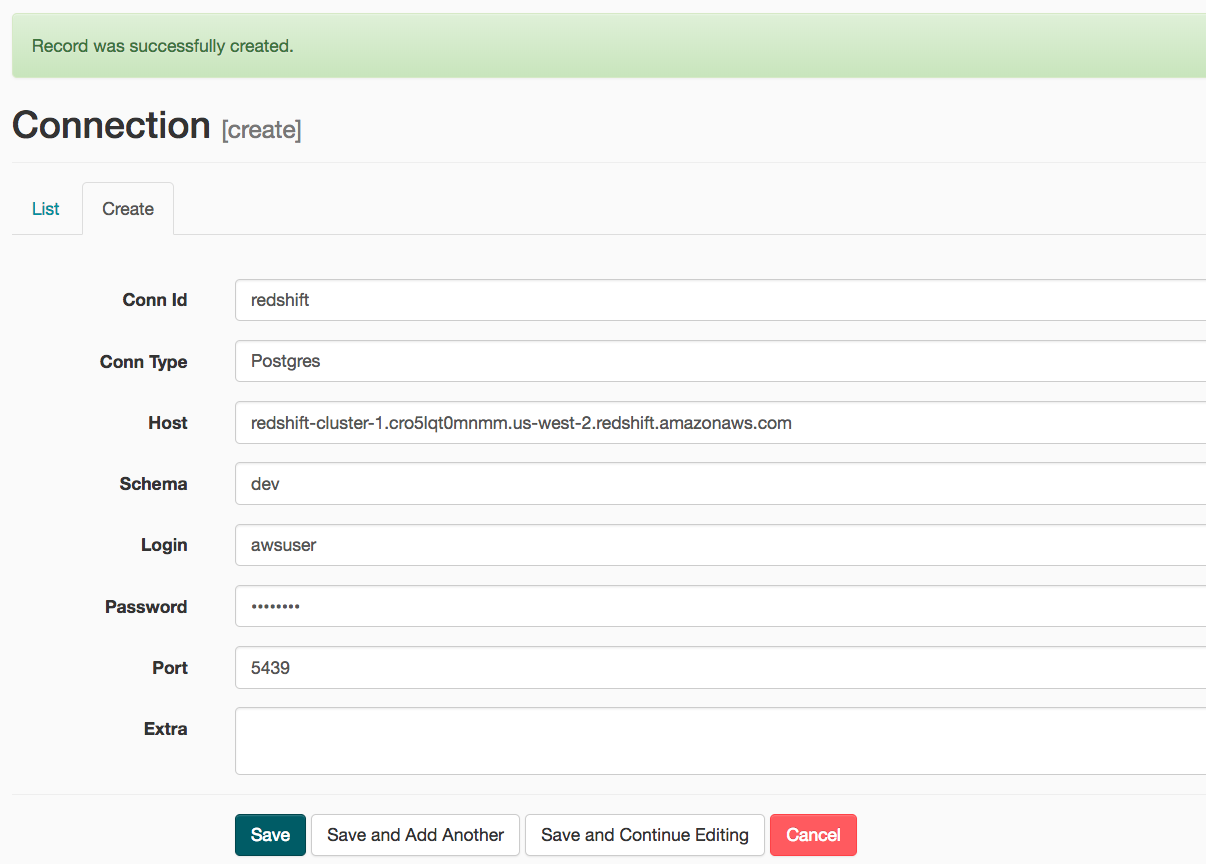
On the next create connection page, enter the following values:
- Conn Id: Enter
redshift. - Conn Type: Enter
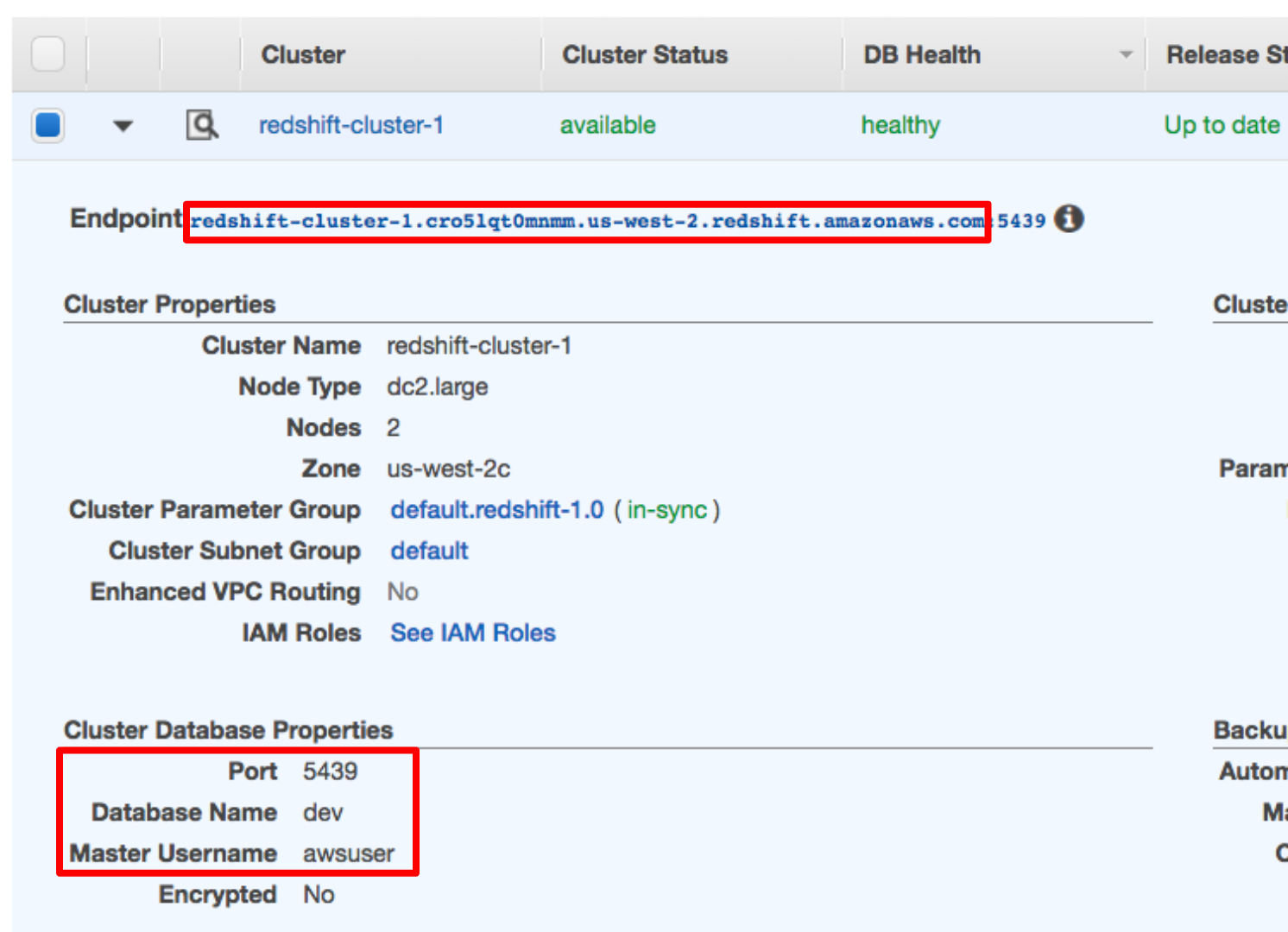
Postgres. - Host: Enter the endpoint of your Redshift cluster, excluding the port at the end. You can find this by selecting your cluster in the Clusters page of the Amazon Redshift console. See where this is located in the screenshot below. IMPORTANT: Make sure to NOT include the port at the end of the Redshift endpoint string.
- Schema: Enter
dev. This is the Redshift database you want to connect to. - Login: Enter
awsuser. - Password: Enter the password you created when launching your Redshift cluster.
- Port: Enter
5439.
Once you've entered these values, select Save.
- Conn Id: Enter
Awesome! You're now all configured to run Airflow with Redshift.